Polyglot Pirates - Guide Document

- Login Flow
- 1.1 Login Page
- 1.2 First Time Page
- Main Menu Flow
- 2.1 Island Page
- 2.2 Settings Page
- 2.3 Profile Page
- 2.4 Friends Page
- 2.5 Dictionaries Page
- 2.6 Leaderboards Page
- 2.7 Ship Page
Bug Reporting
If on any of the flows you find either an edge case that is not yet treated or a bug, report it so it can be fixed (on our Discord Page). Thanks in advance.
1. Login Flow
Logging into the app can be done either by using OAuth (eg. Apple/Google) or by using Device Auth.
If you are already logged in, you can Logout by going to Settings -> Logout or Delete (scroll down). Logging out will still retain your user profile (eg. configuration/language selection), while Delete will delete your user account so you can start from scratch. Both of these have a confirmation window.
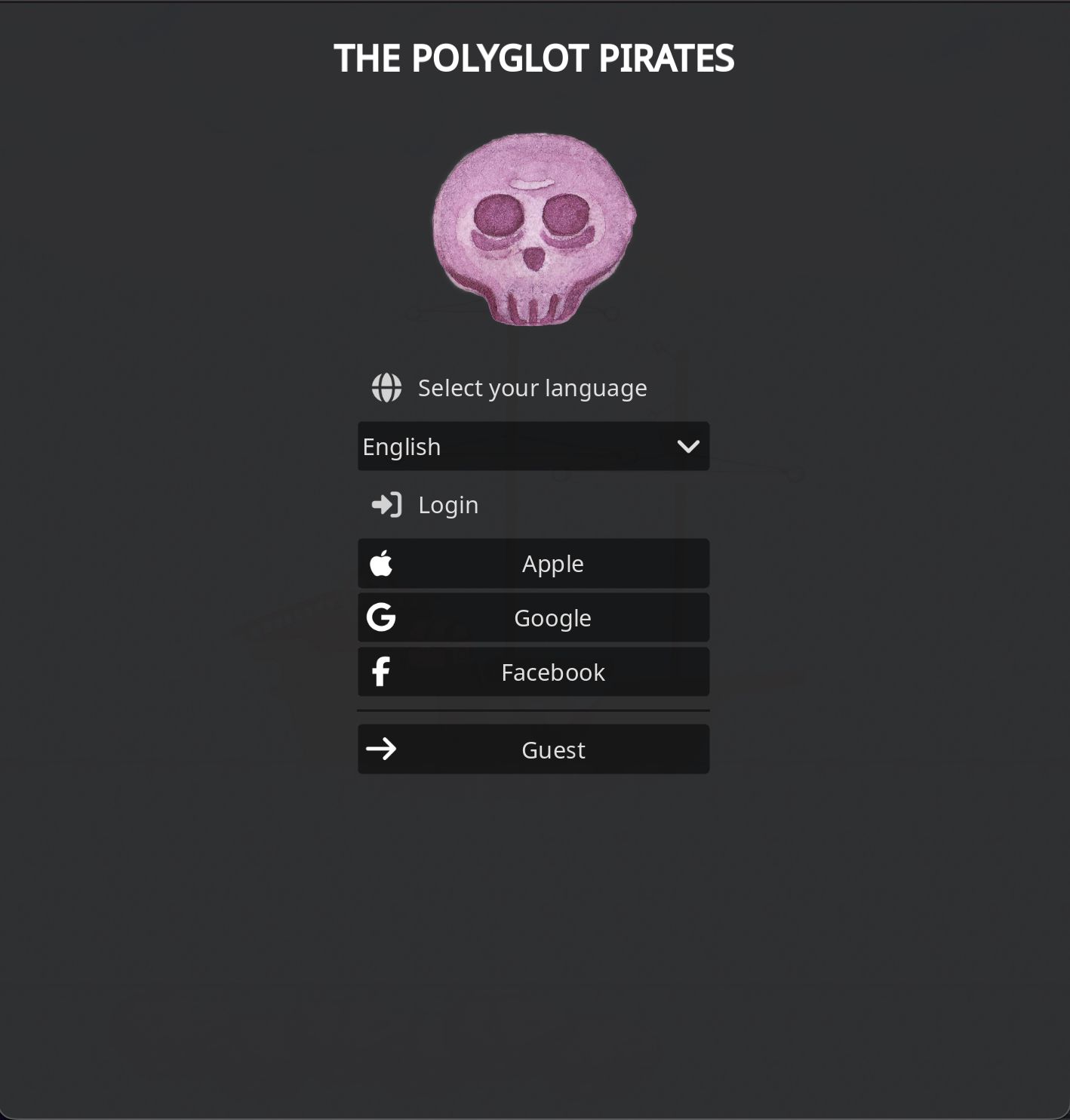
1.1 Login Page
This page is only visible if you are not logged in. After you login, the login should be cached for at least 30 days.
- Change the Language.
- Login with Apple/Google/etc. (Depends on mobile) or continue as Guest (on web not available).
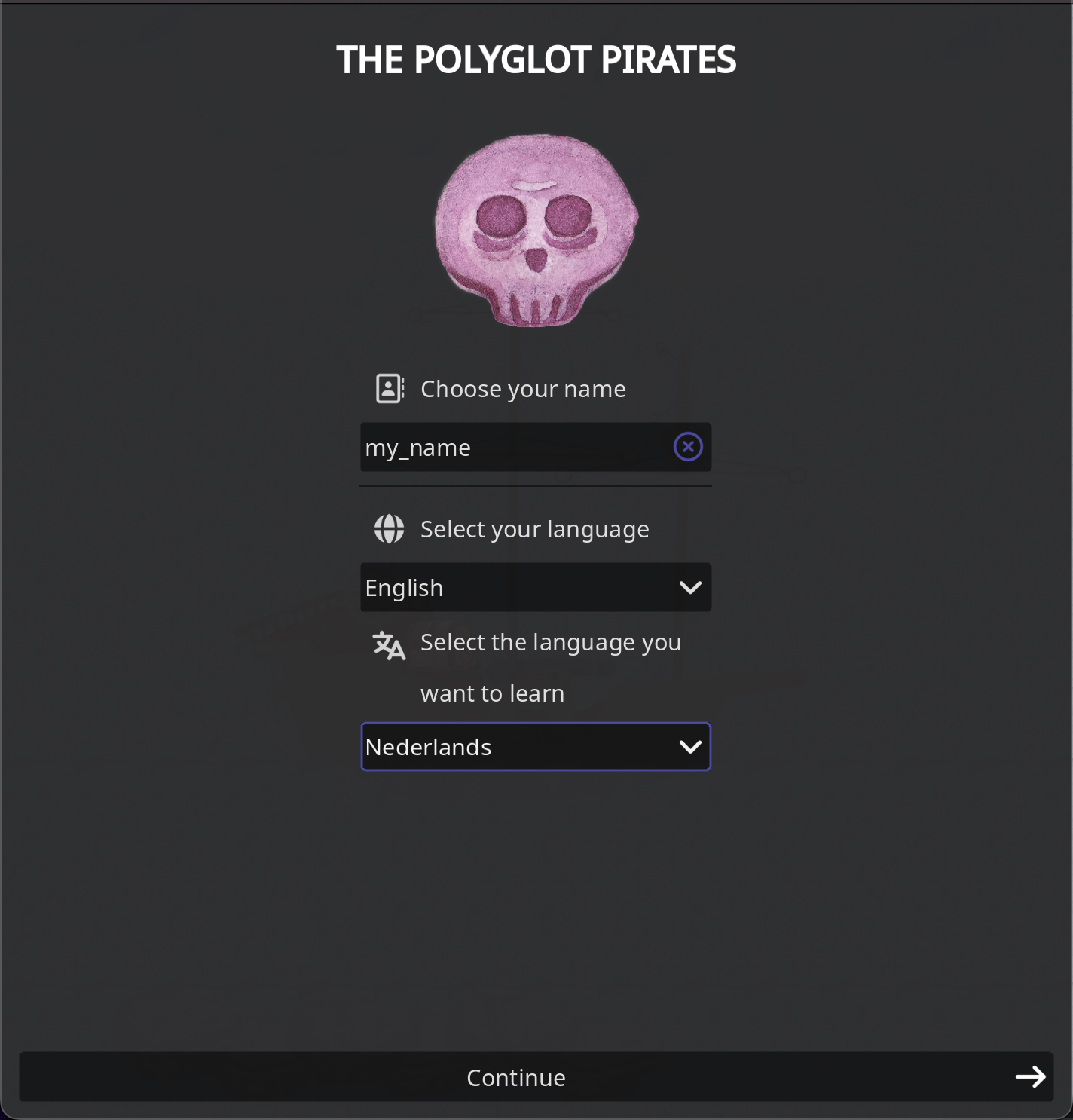
1.2 First Time Page
If you already configured your target language, this page will not show up anymore.
- Configure your Name
- Change the Language
- Configure your Target Language (what language you want to learn)
- Continue button: disabled until the Target Language is set.
1.3 Initial Animation
The initial animation happens after First Time Page (or Login Page if First Time is skipped). It is skipped if the player is in a Game. If you want to replay the Initial Animation, Restart the game.
- Can be sped up by holding mouse down
- Can be skipped by going to Settings -> Skip Introduction
2. Main Menu Flow
After logging in and seeing the initial animation (or skipping it) you arrive to the main menu. In this flow, you are on the island and you can customise the player or game settings, as well as see various information (eg. leaderboards, dictionaries, friends, etc.)
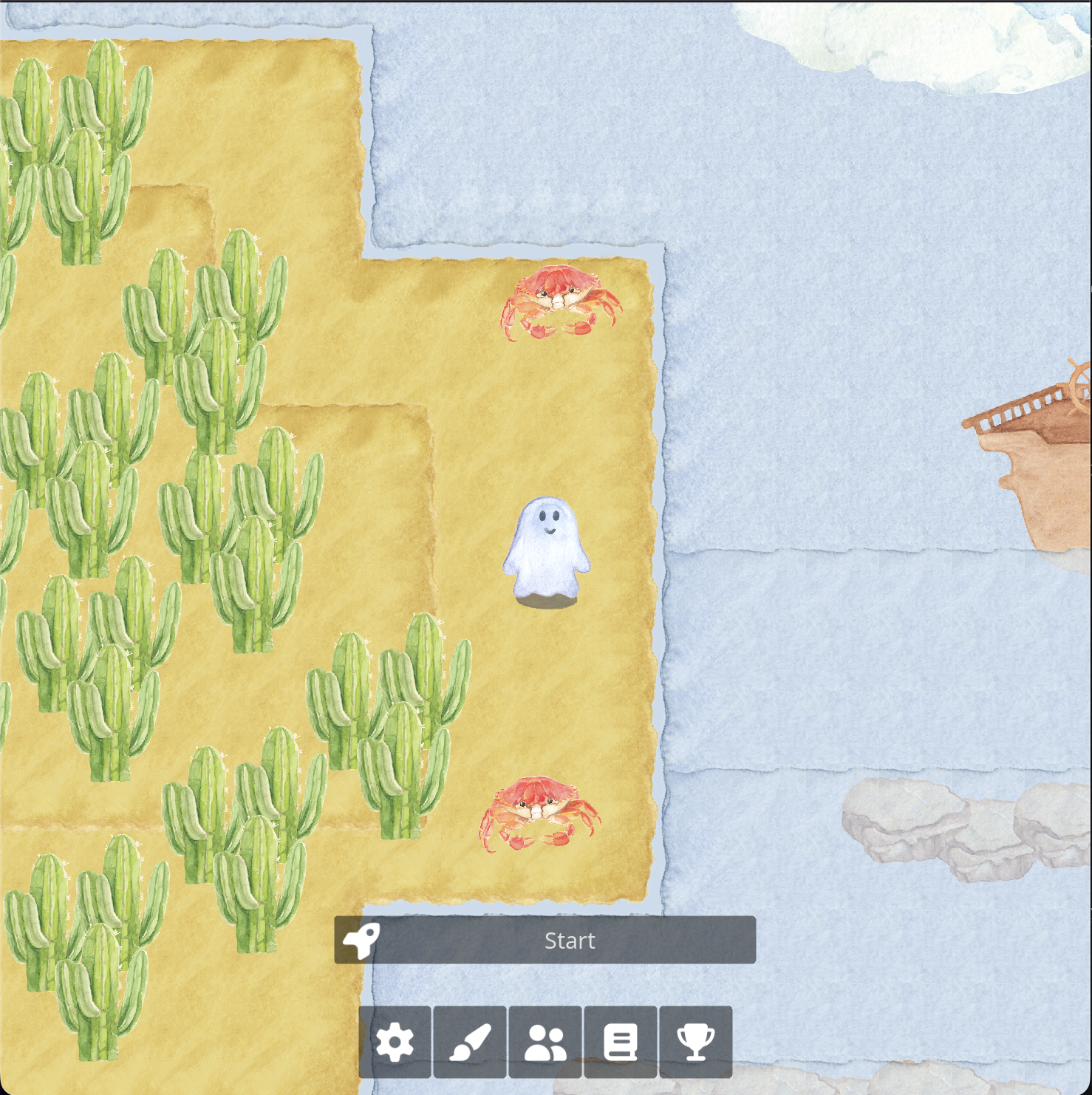
2.1 Island Page
The Island page offers information about the player, the ship, and more submenus.
- On landscape, the menus should be on the right (resize the window or rotate device)
- On portrait, the menus should be on the bottom (resize the window or rotate device)
- You should see the Menu Buttons (Settings, Personalize, Friends, Dictionaries, Leaderboards) and Game Buttons (Start)
 |  |
2.2 Settings Page
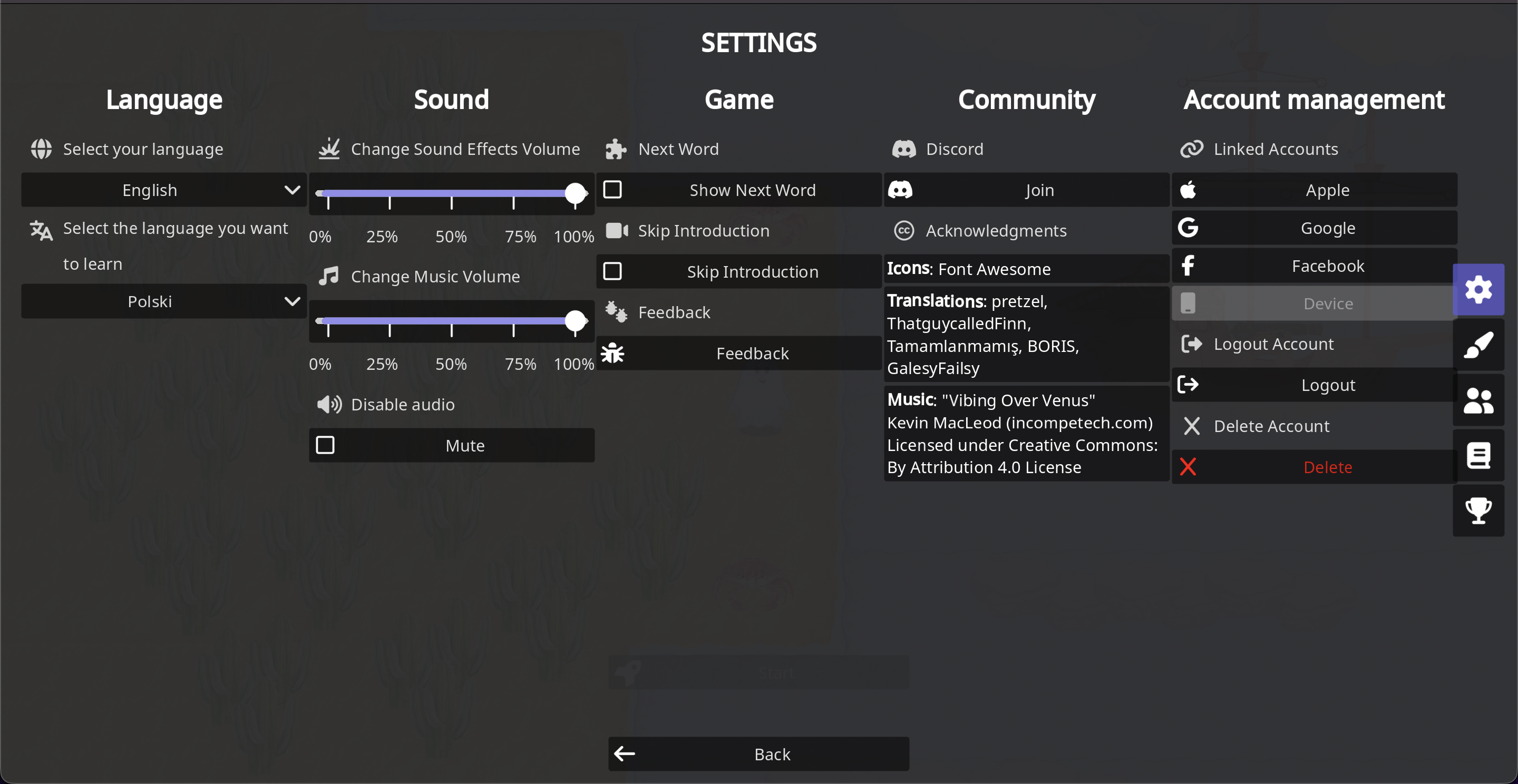
On the Settings page you can update game settings, such as language, sound, gameplay, account, as well as view community information.
- When changing Language, the UI language should update. It should also persist between restarts.
- When changing Target Language, the target language (in game) should update. It should also persist between restarts.
- When changing Sound Effects Volume, the sound effects volume should update. It should also persist between restarts.
- When changing Music Volume, the music volume should update. It should also persist between restarts.
- When Disabling Audio, the music and sound effects should be muted. It should also persist between restarts.
- When Show Next Word is active, in minigames you should see next word and current word. It should also persist between restarts.
- When Skip Introduction is active, the intro animation will be skipped on game restarts. It should also persist between restarts.
- When clicking on Feedback, you should be presented with a Feedback Form.
- When clicking on Discord, a link to this Discord Community should open in the browser.
- When clicking to Link/Unlink an account, you should be guided through the Login flow, and if successful the account will be linked, if not an error will be shown.
- When clicking the Logout button, your session will be deleted, and the game will go back to Login Screen. All device settings done so far will also be deleted.
- When clicking the Delete button, your account will be deleted, and the game will go back to Login Screen. All device settings done so far will also be deleted. All user settings from the server will also be deleted
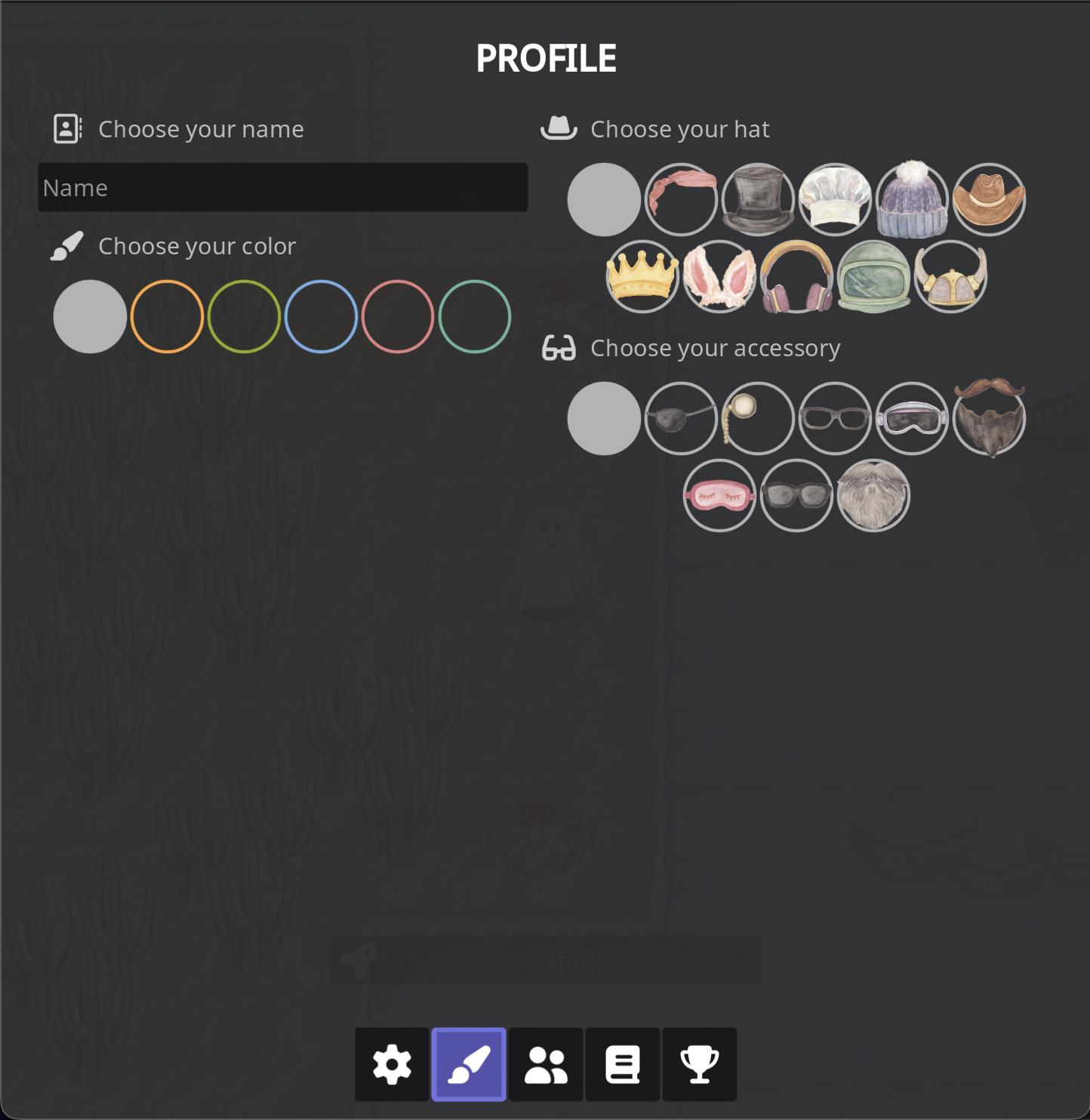
2.3 Profile Page
On the Profile page you can personalize your character.
- Choose a name
- Choose a color. The color should update your character color
- Choose a hat. The hat should update your character hat
- Choose an accessory. The accessory should update your character accessory
2.4 Friends Page
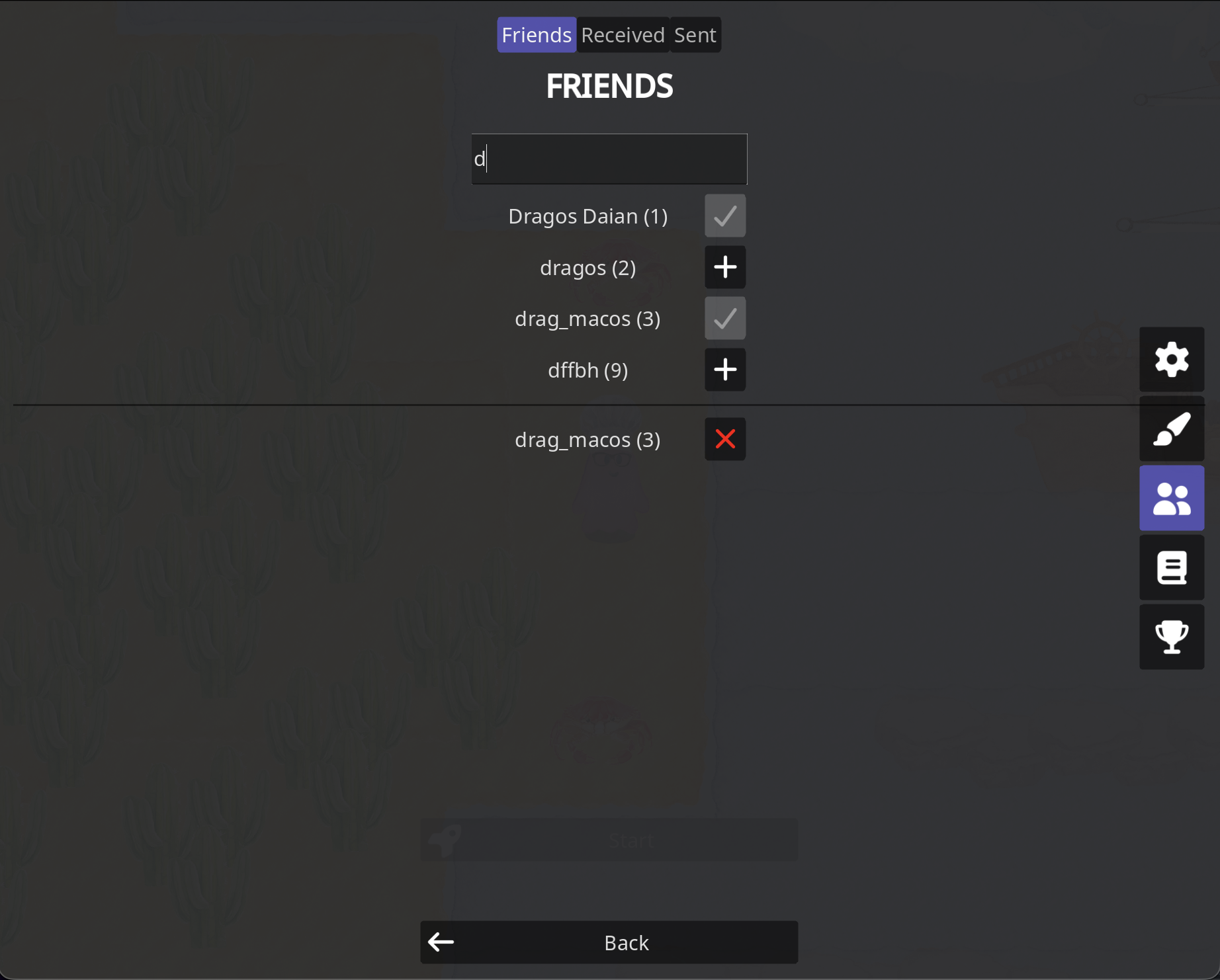
On the Friends page you can view/accept/reject friends. This page has 3 tabs:
Friends Tab
- Search users by display name.
- Send friend requests.
- Remove existing friends.
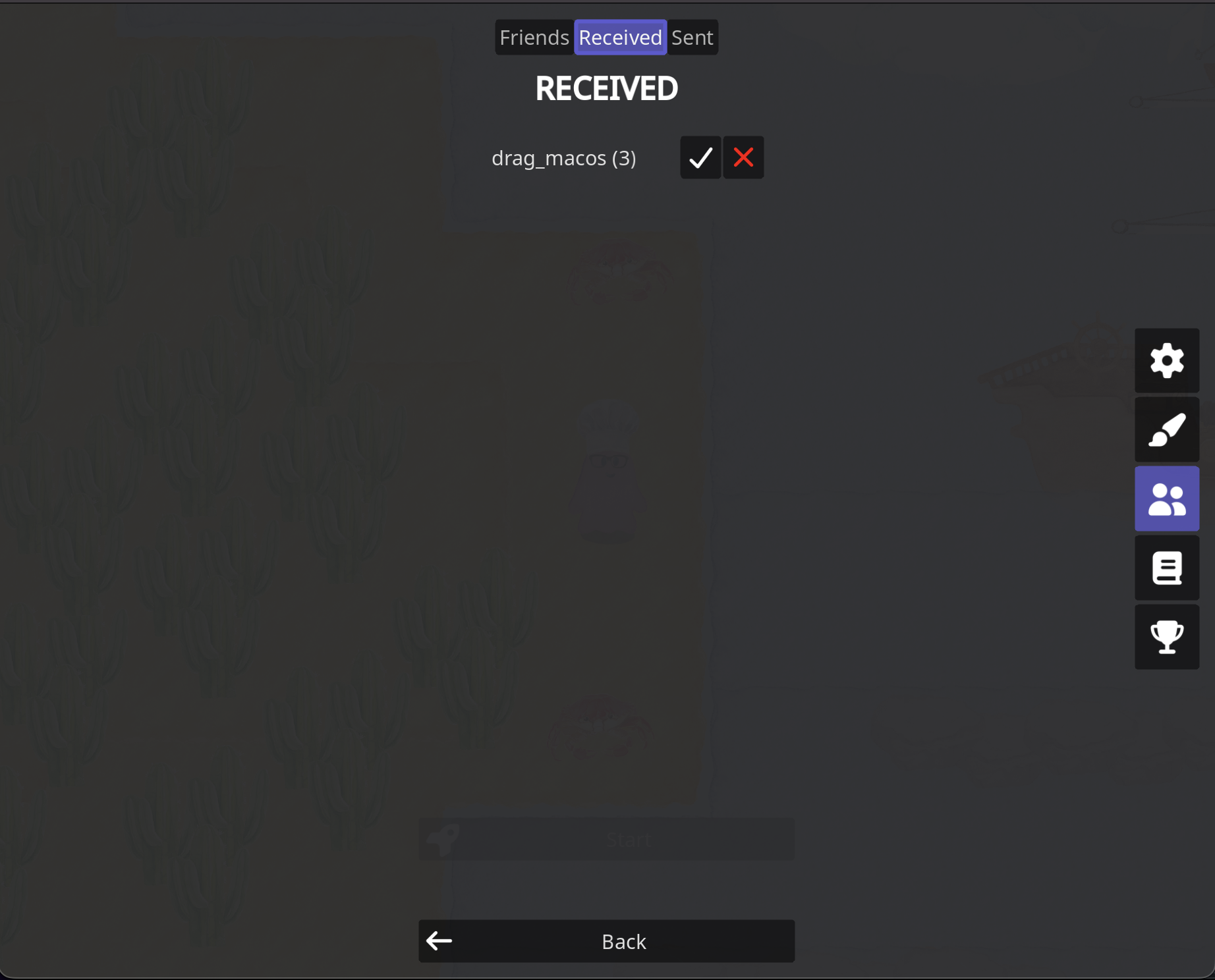
Received Tab
- Accept or decline friend requests.
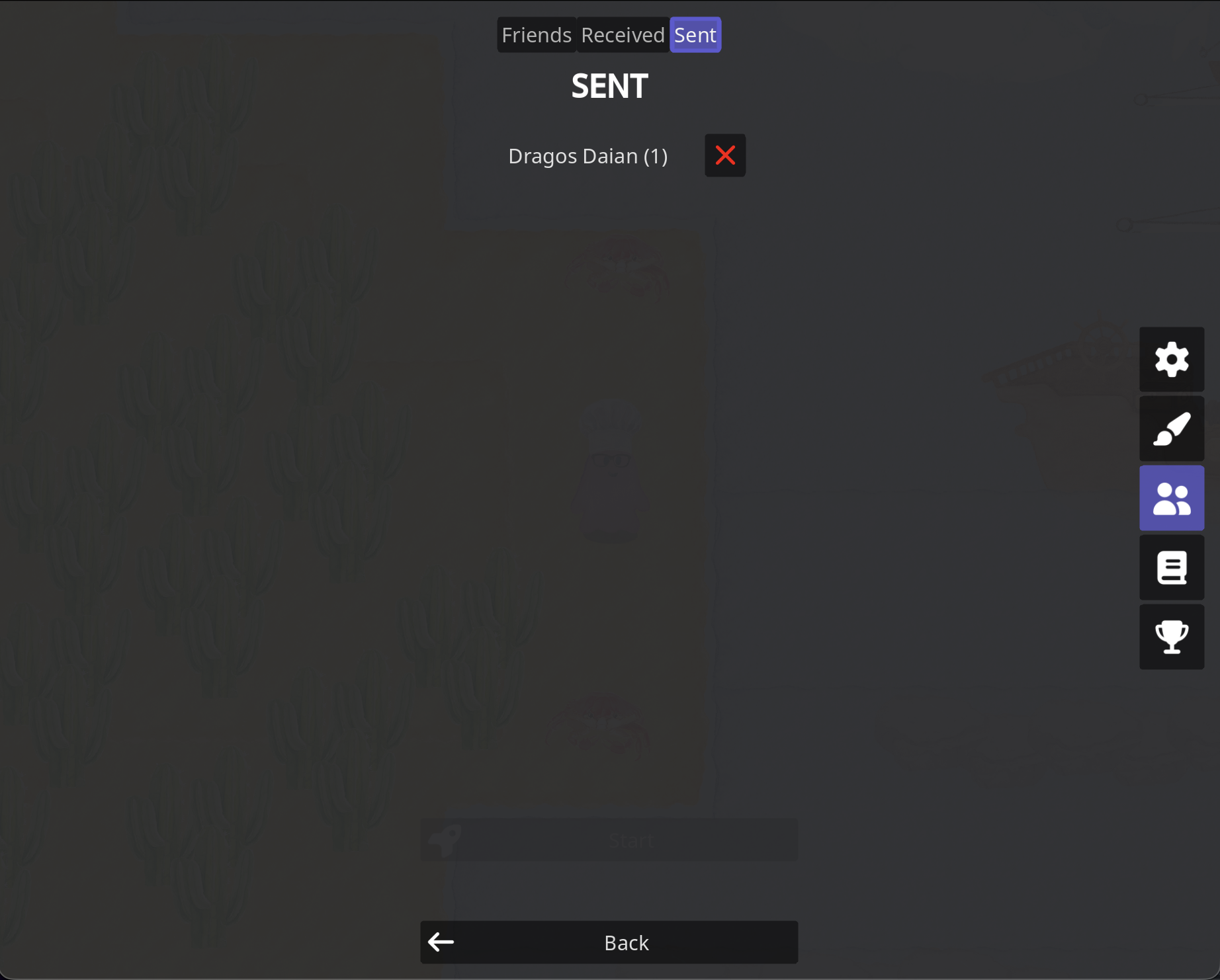
Sent Tab
- View or revoke sent friend requests.
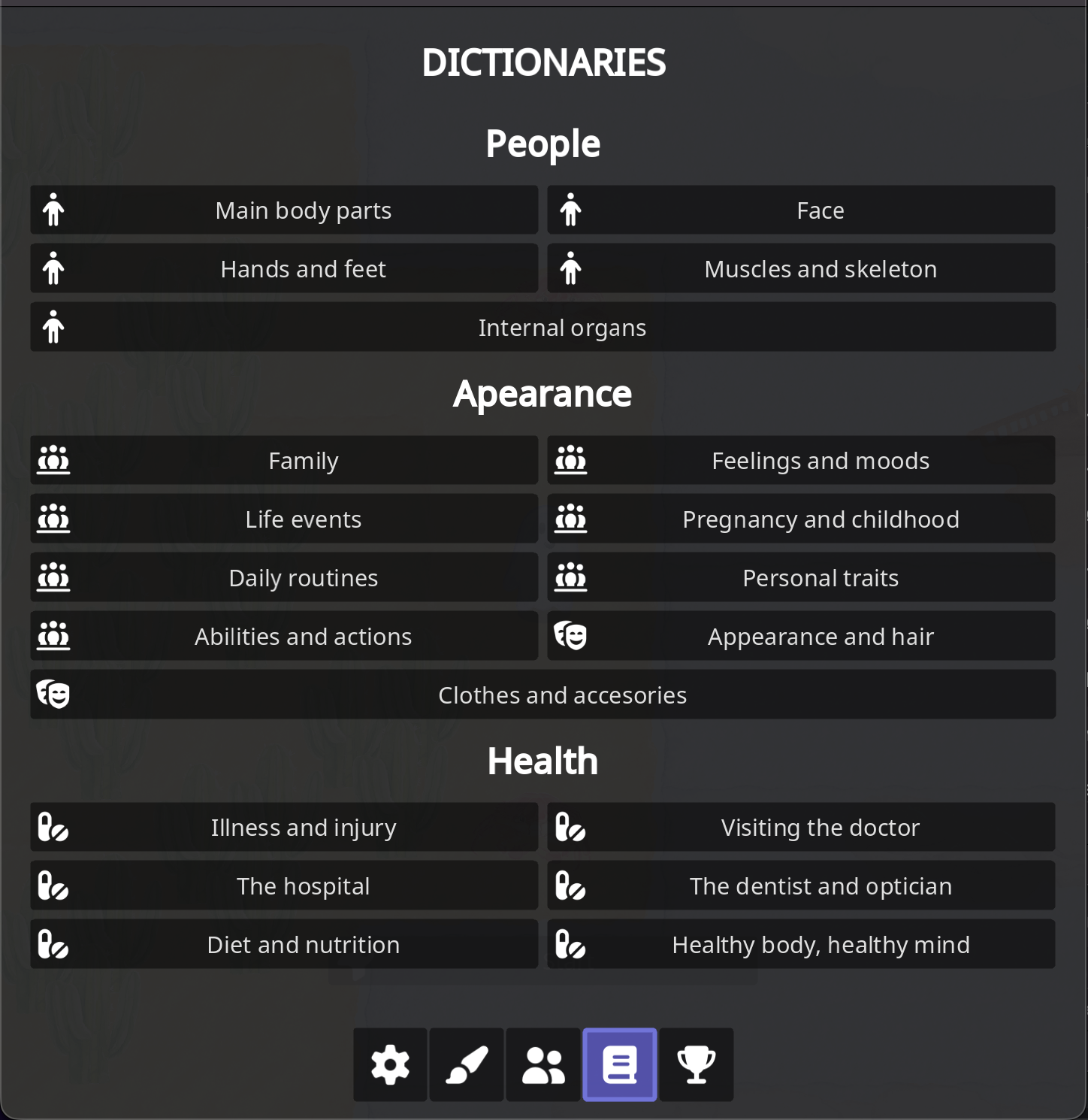
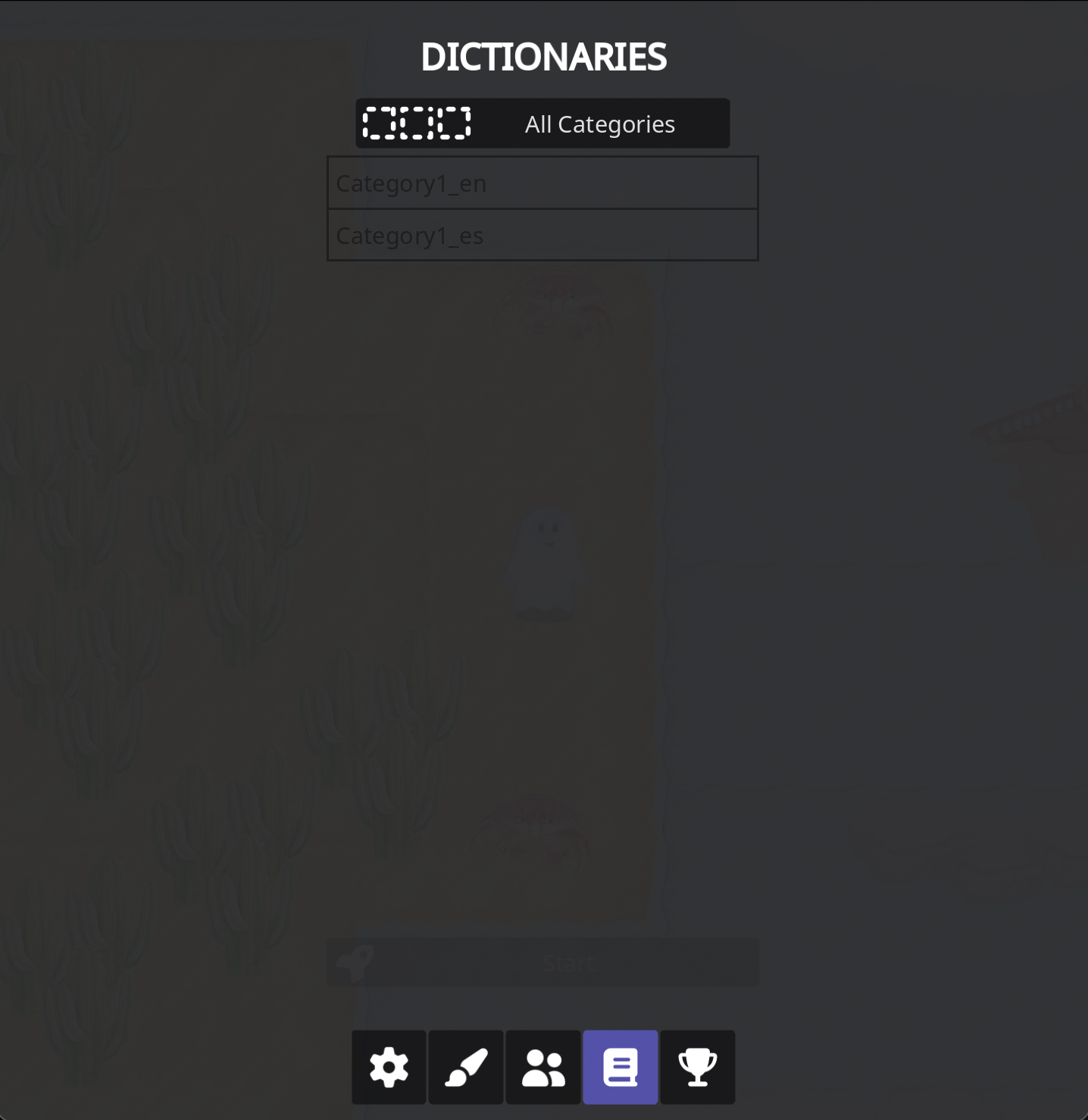
2.5 Dictionaries Page
In the Dictionaries Page you will be able to see the dictionaries and the progress you have on them, as well as select a dictionary and view words inside it.
Dictionary Tab
- View Dictionaries
Word Tab
- View Words
- Go back to Dictionaries Tab
 |  |
Work in progress
2.6 Leaderboards Page
In the Leaderboards Page you will be able to see your current position in the leaderboards as well as others.
- View your rank
- View other players rank

Work in progress
2.7 Ship Page
The Ship Page is a sort of get ready page before the game actually starts.
Work in progress